
Quick Answer
A Teams administrator deploys Pinnacle for Teams by uploading the Pinnacle for Teams .zip app package, without unzipping it, in Teams apps > Manage apps in the Teams admin center and then making the app available to Everyone or to specific users or groups.
What This Article Helps With
This article explains how a Teams administrator uploads Pinnacle for Teams and makes the app available to users in Microsoft Teams. Deployment follows Microsoft's standard process for custom Teams apps. Menu labels can change as Microsoft updates the Teams admin center, so use Microsoft's documentation for current step-by-step instructions where the labels differ.
Requirements Before You Deploy
- Admin role: The Teams Administrator role (or Global Administrator) is required to upload Pinnacle for Teams and make it available in the Teams admin center.
- App package: The Pinnacle for Teams app package is a .zip file containing the app manifest and icons. It is not an installer (MSI). Upload the .zip file as it is, without unzipping it.
- Permissions: Pinnacle for Teams uses the standard Microsoft Teams permissions for this type of app and does not require Microsoft Entra administrator consent.
- User licences: Each user needs a Microsoft Teams licence.
- Groups (optional): To limit access, make Pinnacle for Teams available to specific Microsoft Entra ID groups. Users must be members of an included group to see the app.
- Cloud environment: Uploading custom apps is not available in GCC High, DoD, or Teams operated by 21Vianet, so Pinnacle for Teams cannot currently be used in those environments.
How to Deploy Pinnacle for Teams
- Download the Pinnacle for Teams app package (ZIP).
- Open the Teams admin center.
- Open Teams apps > Manage apps > Org-wide app settings.
- Confirm that custom apps are allowed.
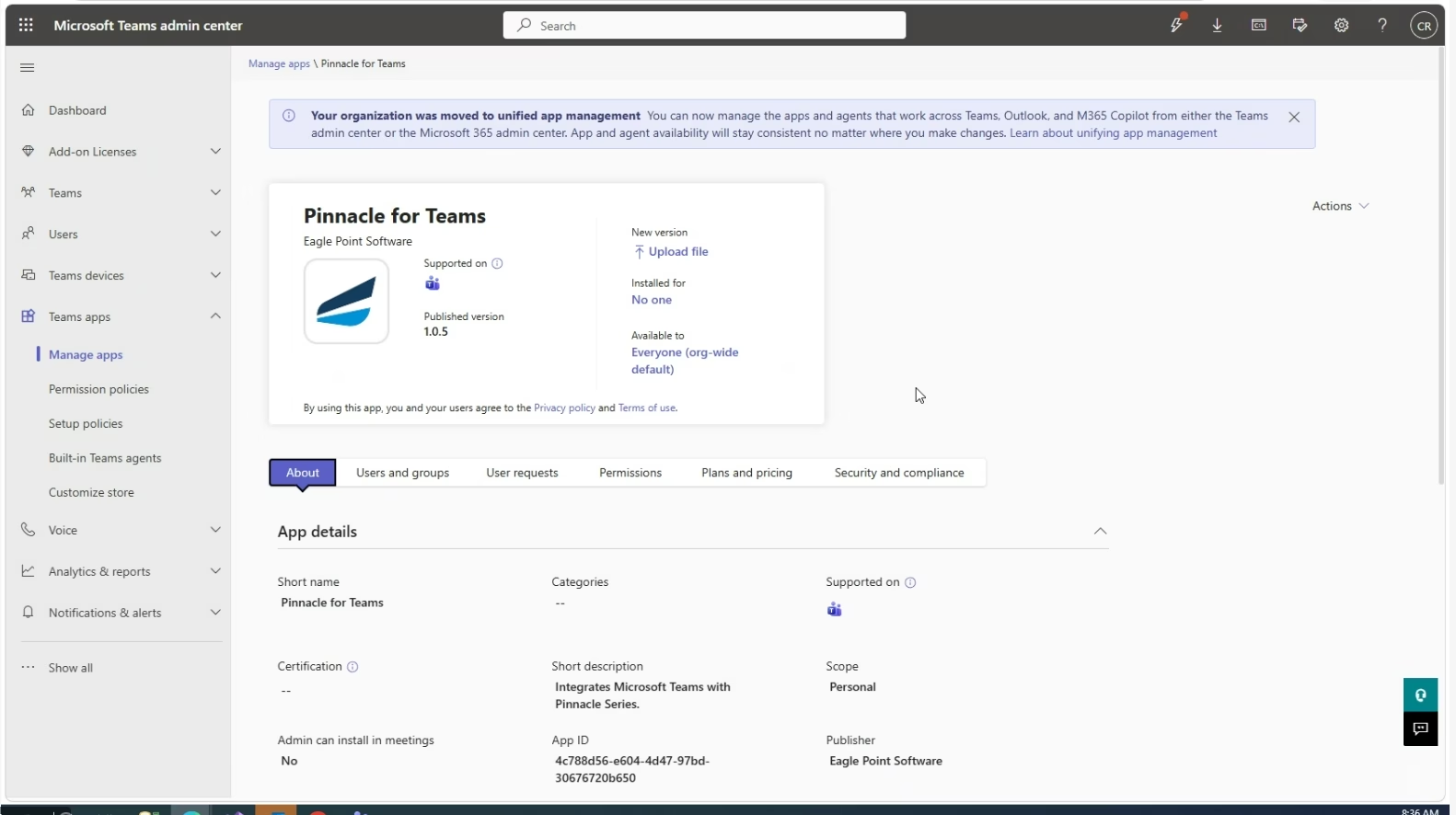
- Open Teams apps > Manage apps.
- Upload the Pinnacle for Teams .zip file. Do not unzip the file first.
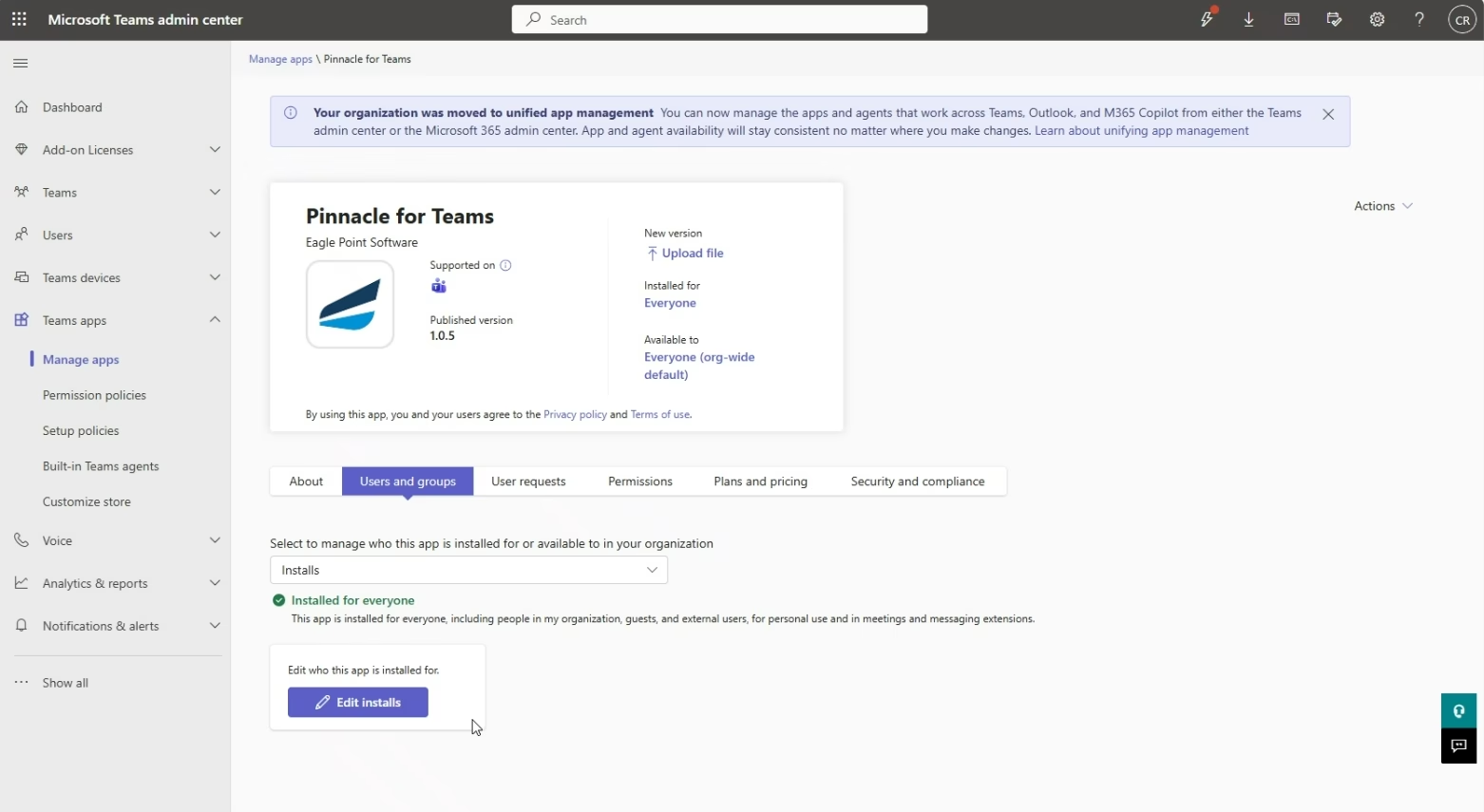
- Make Pinnacle for Teams available to Everyone or to specific users or groups. Tenants that still use app permission policies should allow the app in those policies instead.
- Confirm that Pinnacle for Teams is listed in Teams apps > Manage apps.
- Wait for the app to appear for users, then confirm that a user in an included group can find Pinnacle for Teams in Microsoft Teams. The app usually appears within 24 hours but can occasionally take up to 48 hours.
Helpful Tips
- We recommend creating a dedicated Microsoft Entra ID group, for example "Pinnacle for Teams users", and making Pinnacle for Teams available to that group. A dedicated group makes it easier to roll out the app in stages and to add or remove users later.
- To make Pinnacle for Teams appear in the Teams app bar automatically, install and pin the app for users with Teams apps > Setup policies. This step is optional.
- If the tenant has not yet moved to unified app management, make sure blocked apps and org-wide app settings match in both the Teams admin center and the Microsoft 365 admin center (Settings > Integrated apps).
- Microsoft Learn: custom app settings in Teams describes the current Microsoft process.
Common Questions
Do I need to unzip the Pinnacle for Teams app package?
No. Upload the Pinnacle for Teams .zip file as it is. The package contains the app manifest and icons and is not an installer.
Can I make Pinnacle for Teams available to only some users?
Yes. Make Pinnacle for Teams available to specific users or Microsoft Entra ID groups instead of Everyone. Users must be members of an included group to see the app.
Does deploying Pinnacle for Teams require Microsoft Entra administrator consent?
No. Pinnacle for Teams uses the standard Microsoft Teams permissions for this type of app and does not require Microsoft Entra administrator consent.
How long does it take for Pinnacle for Teams to appear for users?
Pinnacle for Teams usually appears for users within 24 hours, but it can occasionally take up to 48 hours.